
OnCall Order Mode
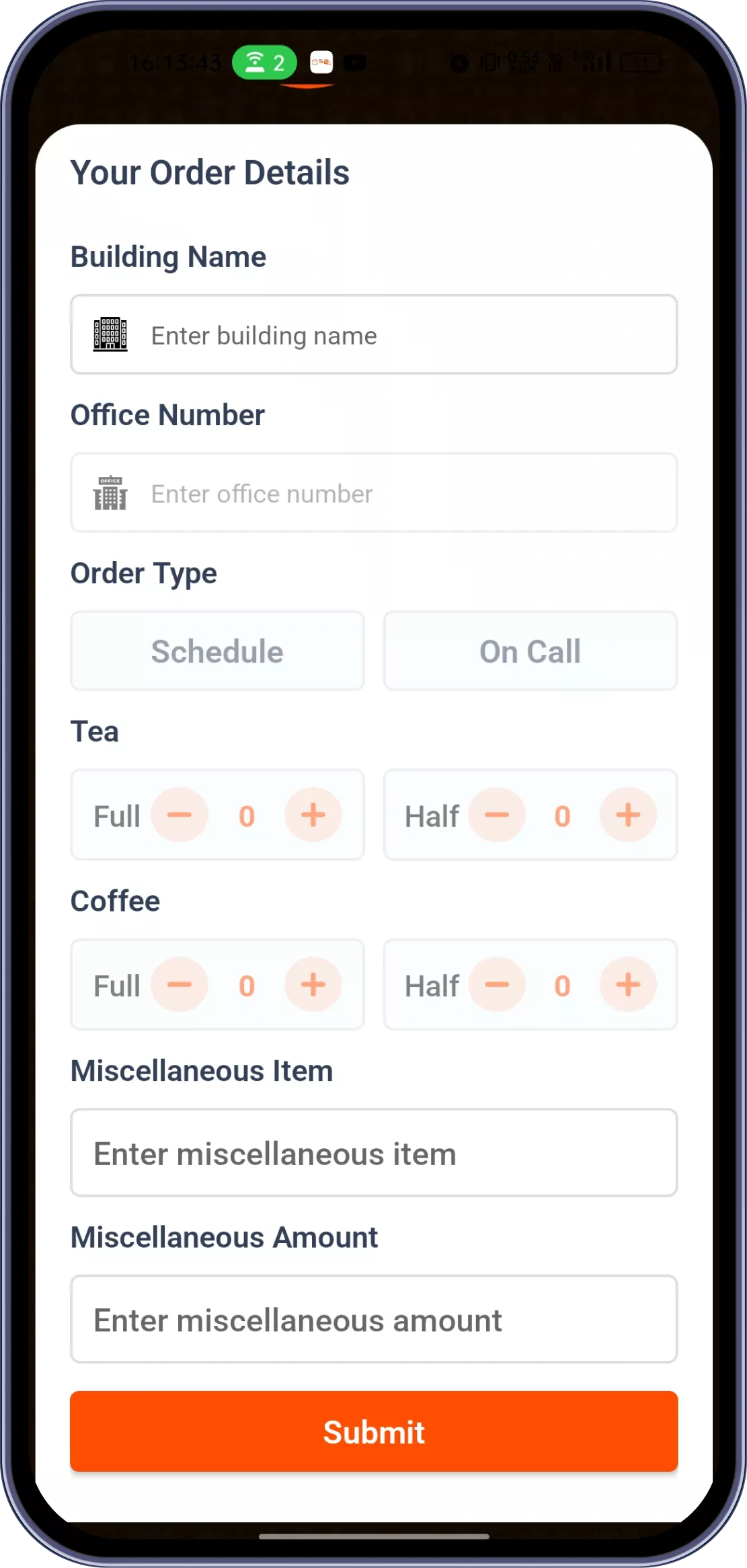
Users can place instant tea or coffee orders by selecting building and office number. Quantities can be adjusted quickly using an easy counter system.
Truffle TEA lets office and campus users sign in with just a mobile number, verify with a quick OTP, and place a tea or coffee order in a few taps built for workplaces where speed matters more than a full ordering app
Book A Demo
No lengthy registration, no separate password to remember just a phone number, a code, and an order.
Users can place instant tea or coffee orders by selecting building and office number. Quantities can be adjusted quickly using an easy counter system.

Users can pre-plan beverage requirements in advance for offices or meetings. This ensures timely delivery without repeated manual ordering.

Users can view a clear, organized list of all orders placed during the day. This includes quantities, timings, and order types for full transparency.

Orders are linked to specific buildings and office numbers for accurate delivery. This is especially useful for large office complexes or campuses.

The platform supports managing large or recurring tea/coffee needs efficiently. This reduces manual coordination for offices with high consumption.

Beyond individual instant orders, Truffle TEA supports advance order scheduling for offices and meetings that want beverages ready without repeated manual ordering, bulk beverage management for larger office complexes, and a daily order log showing quantities, timings, and order types across the day all tied back to the same building and office-number routing used for instant orders.
Nine core capabilities that make Truffle Tea the only tool your front-of-house needs.

User downloads the Truffle Tea app from the iOS App Store or Google Play Store. The app installs and opens to the Login screen.

User enters their mobile number to initiate sign-in. This links the session to their profile for order tracking.

A 6-digit OTP is sent to the user's phone for verification. Entering the correct OTP grants secure access to the app.

User selects or confirms their building and office number for delivery. This ensures orders are routed to the correct location.

User explores the OnCall Mode to place an instant tea/coffee order. They get familiar with quantity adjustment using the counter system.

User explores Schedule Mode to set up recurring or advance orders. This helps them plan beverage needs for meetings or daily routines.

User places their first order, either via OnCall or Schedule Mode. This confirms the ordering flow is working as expected.

User checks the Order History screen to view their placed order. This helps them understand how to track quantities, timing, and order type going forward.

User is fully onboarded and can begin regular daily use of the app. Ongoing support is available for any order or login issues.
From cozy cafés to bustling fine-dine Restaurants, we support all outlet types for seamless operations and growth!






To generate an employee Auth Key, the administrator must log in to the Back Office, navigate to User Management → Employee, complete the employee form, select the Truffle TEA role, and generate the Auth Key.
Your Auth Key is provided by your restaurant administrator. The administrator creates it in the Back Office (BO) under User Management → Employee by completing the employee form and selecting the Truffle TEA role. An Auth Key is required for every Truffle TEA user.
To add a building: 1.Log in to the Back Office at bo.trufflesystems.in using a Truffle TEA account. 2.Navigate to Building Management → Building Management. 3.Click Add Building. 4.Enter the Building Name and Address. 5.Click Save.
To download an office QR code: 1.Go to Back Office → Building Management → Office Management. 2.Locate the required office in the list. 3.Click the Download QR option. The QR code will be downloaded to your device, where you can print or share it as needed.
To change a schedule's timing: 1.Go to Back Office → Scheduling. 2.Find the schedule you want to update. 3.Click Edit. 4.Enter the new time in the Time field. 5.Click Save. The updated schedule timing will take effect immediately.
Device ID Approval is a security feature in Truffle TEA. When a user signs in from a new or different device, the restaurant administrator must approve the new Device ID before the user can access the system. This helps prevent unauthorized access in the event of device loss or theft and ensures that only approved devices can use the application.
Experience the future of transactions! Schedule a demo today and witness how our POS solution can revolutionize your business.