
QR Code Scanning
Customers scan the table QR code to instantly access the menu. No app download or installation is required to get started.
One-click add to cart and OTP-verified checkout keep ordering fast and secure, while orders route straight to the kitchen the moment they're confirmed.
Book A Demo
Customers scan a QR code to reach the digital menu instantly, browse, customize, and check out all without downloading anything.
Customers scan the table QR code to instantly access the menu. No app download or installation is required to get started.

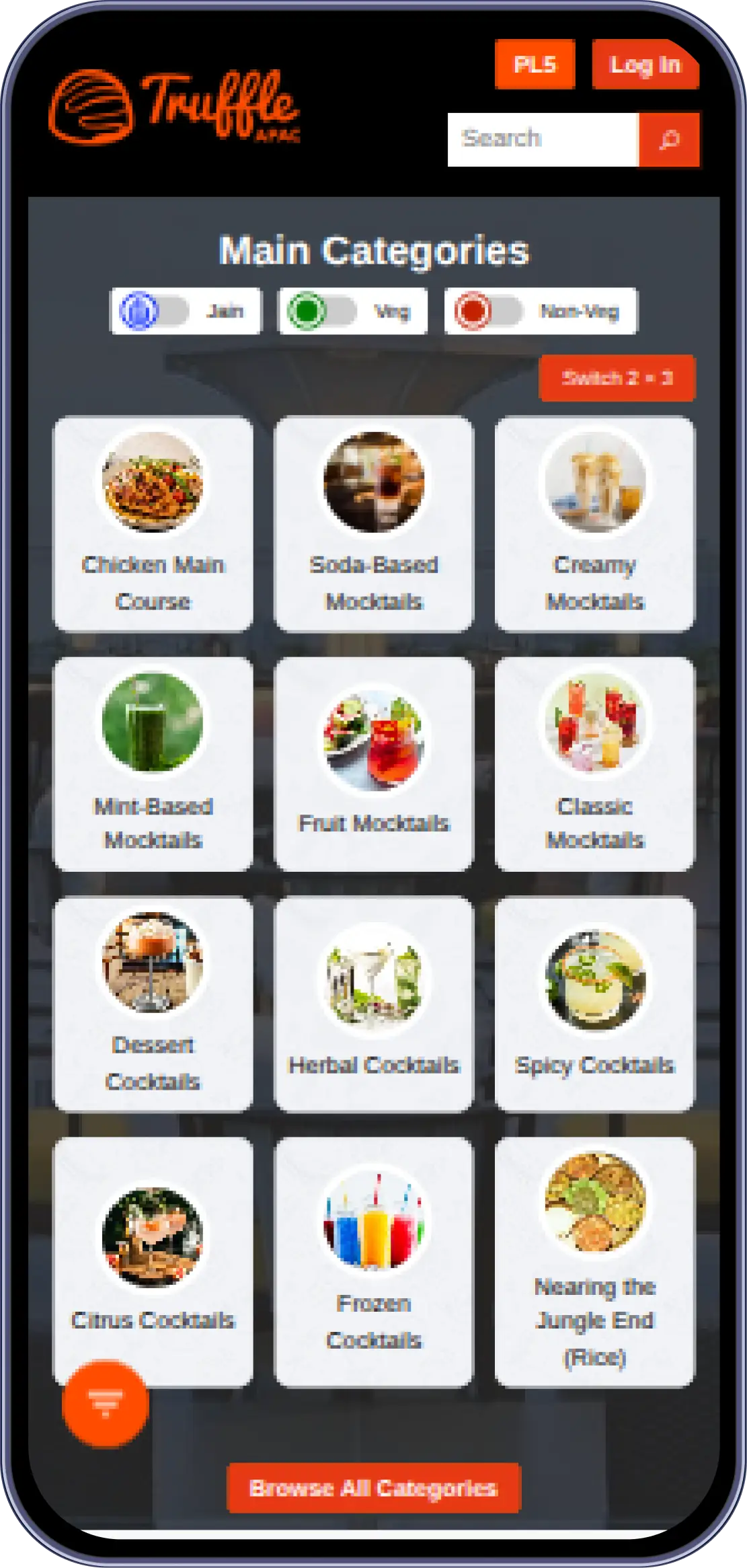
The full menu opens immediately, organized into categories like Starters, Mains, and Desserts. This ensures fast, effortless browsing for customers.

Customers can tap any dish to view pricing, modifiers, and customization options. This allows full control over how each item is ordered.

Items can be added to the cart in a single click, with quantities easily adjustable. Customers can continue browsing without losing their cart progress.

Customers enter their name and mobile number, verified through OTP. This ensures secure and accountable order placement before submission.

Once verified, orders are sent straight to the kitchen without delays. This removes the need for manual order relay by staff.

A clean, secure digital bill is generated automatically after the order. Customers receive full order details without needing a printed receipt.
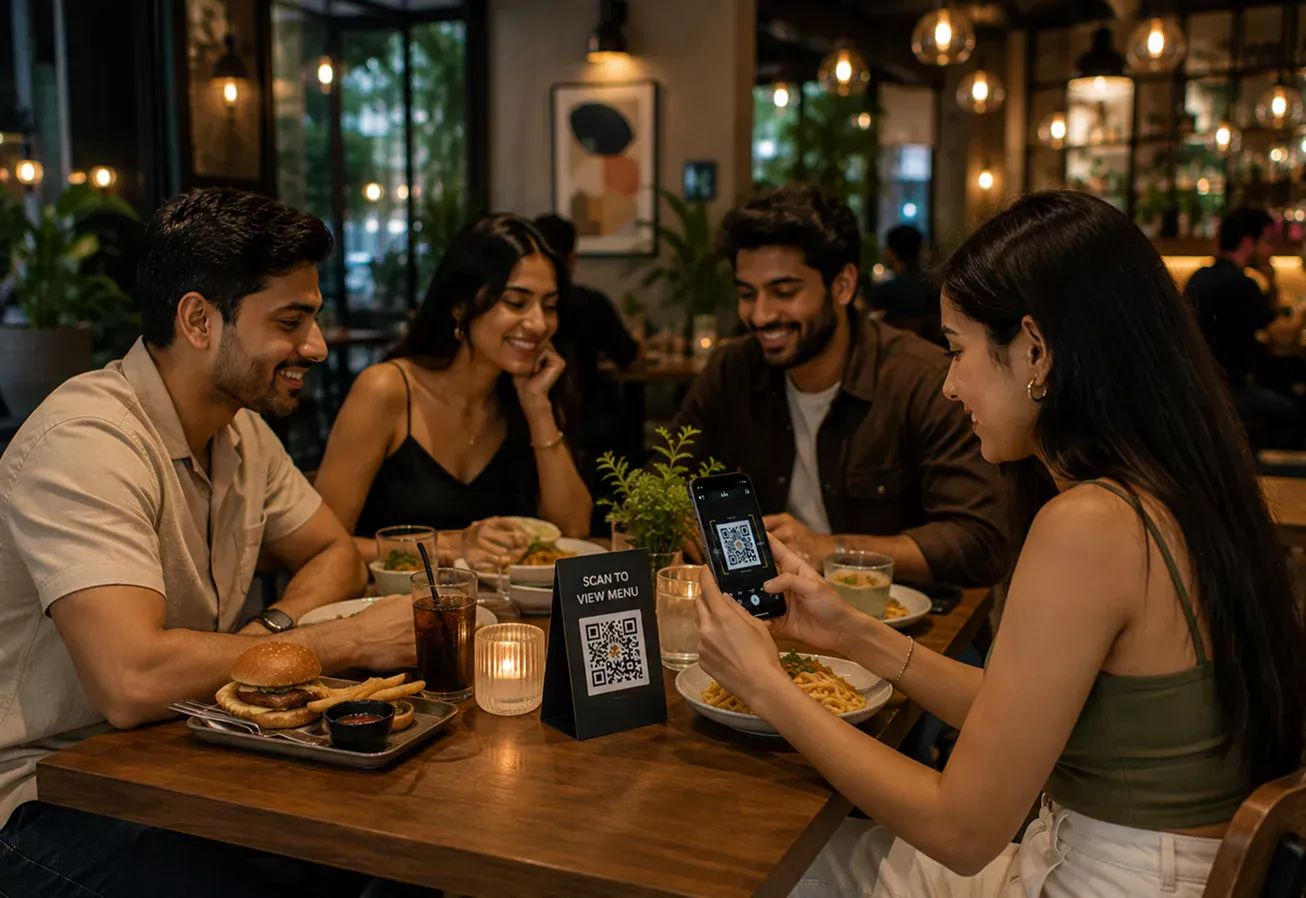
Table-specific QR codes keep orders correctly assigned across any device, with real-time menu updates, order status visibility, and space for special requests all without a staff member relaying details back and forth.
Four core capabilities that make Truffle QR Ordering the only tool your front-of-house needs.

Restaurant generates unique QR codes for each table through the admin panel. Each code is linked specifically to its corresponding table number.

Generated QR codes are printed and placed on respective tables in the restaurant. This ensures customers can easily scan and start ordering upon arrival.

Restaurant configures the digital menu with categories like Starters, Mains, and Desserts. Modifiers, pricing, and item customizations are mapped accordingly.

OTP verification and checkout settings are configured for secure order placement. Name and mobile number fields are set up as part of the ordering flow.
From cozy cafes to bustling fine-dine Restaurants, we support all outlet types for seamless operations and growth!







First, check your internet connection and make sure your Wi-Fi or mobile data is turned on. If your internet connection is working properly, refresh the browser or try opening the QR code link in another browser, such as Google Chrome.
Log in to bo.trufflesystems.in, then navigate to Table Management → Table Layout Management. Click the Download All QR Codes button, then click Download. All QR codes will be downloaded together in a single PDF file.
No special app is required. Simply use your phone's built-in Camera app (on iPhone or Android). The camera will automatically detect the QR code and display a link that you can tap.
The User Web app is designed primarily for Indian mobile numbers. Foreign mobile numbers may not receive the OTP via WhatsApp if WhatsApp is not configured for that number. If you are unable to log in, please contact the restaurant staff for assistance.
Tap Pay Online, verify the OTP, and on the Razorpay payment screen, select UPI. Choose your preferred UPI app (such as Google Pay, PhonePe, or CRED Pay) and complete the payment.
A blank page after payment may indicate that the redirect process failed, but your order may still have been processed successfully. Check your bank account or UPI app to confirm whether the payment was deducted. If the amount has been deducted, show the payment confirmation to the restaurant staff and contact Truffle Support for further assistance.
Experience the future of transactions! Schedule a demo today and witness how our POS solution can revolutionize your business.