
Order Type Selection
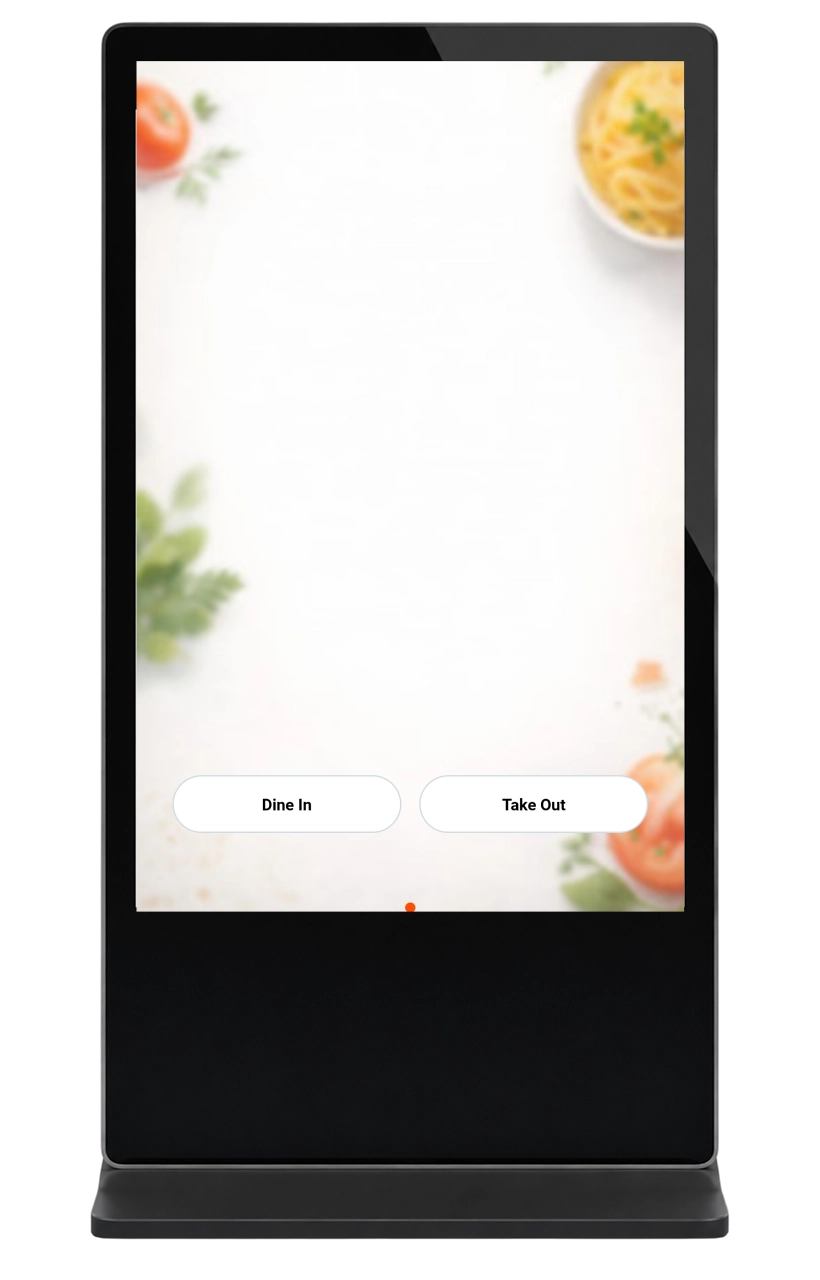
Customers choose between Take Out or Dine In right at the start. This ensures accurate order routing and ticketing from the first interaction.
Order type selection, menu navigation, item customization, cart review, and payment all sit in one guided flow built so a customer can complete the entire order without staff assistance.
Book A Demo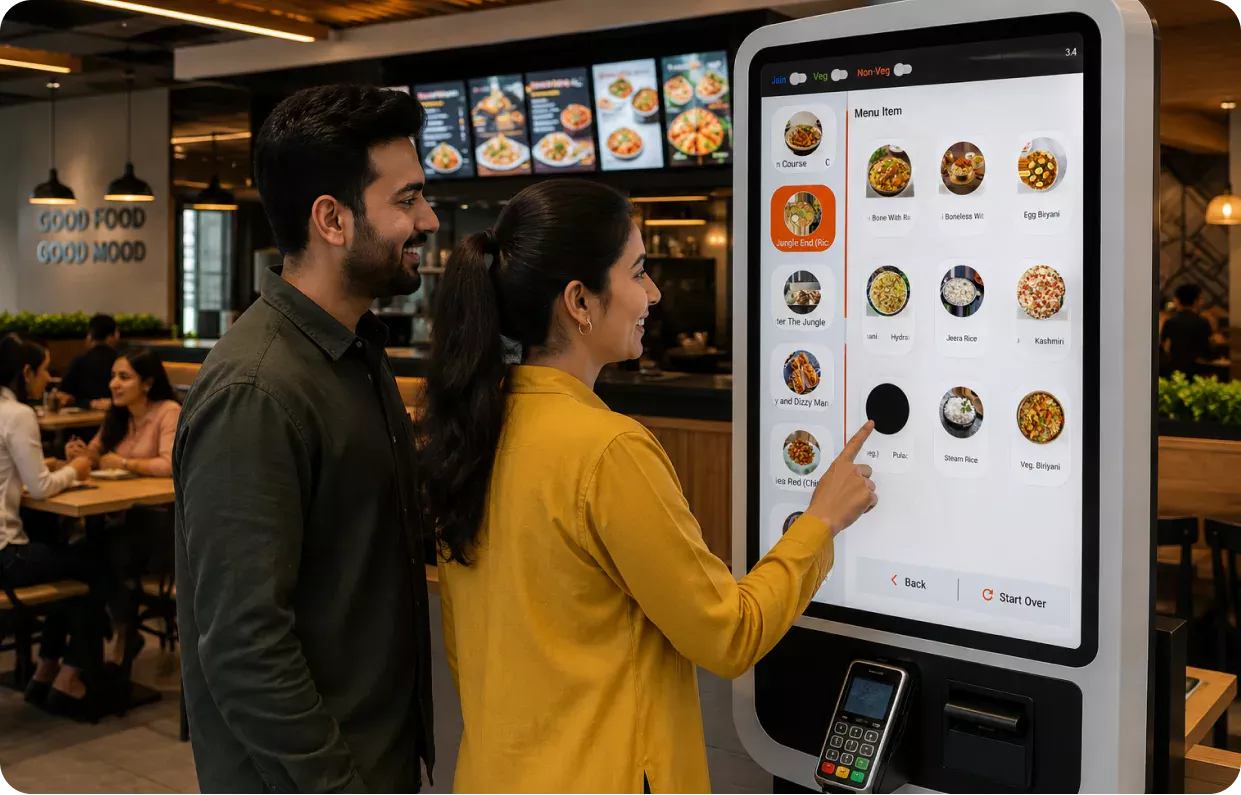
Students move through a single linear flow order type, menu, customization, cart review, and payment cutting confusion and keeping the line moving.
Customers choose between Take Out or Dine In right at the start. This ensures accurate order routing and ticketing from the first interaction.

Browse the menu through main categories and sub-categories for quick discovery. Selecting an item moves the customer directly into customization.

Customize menu items with detailed, side-specific options like toppings on one half of a pizza. Set desired quantity before adding the item to the cart.

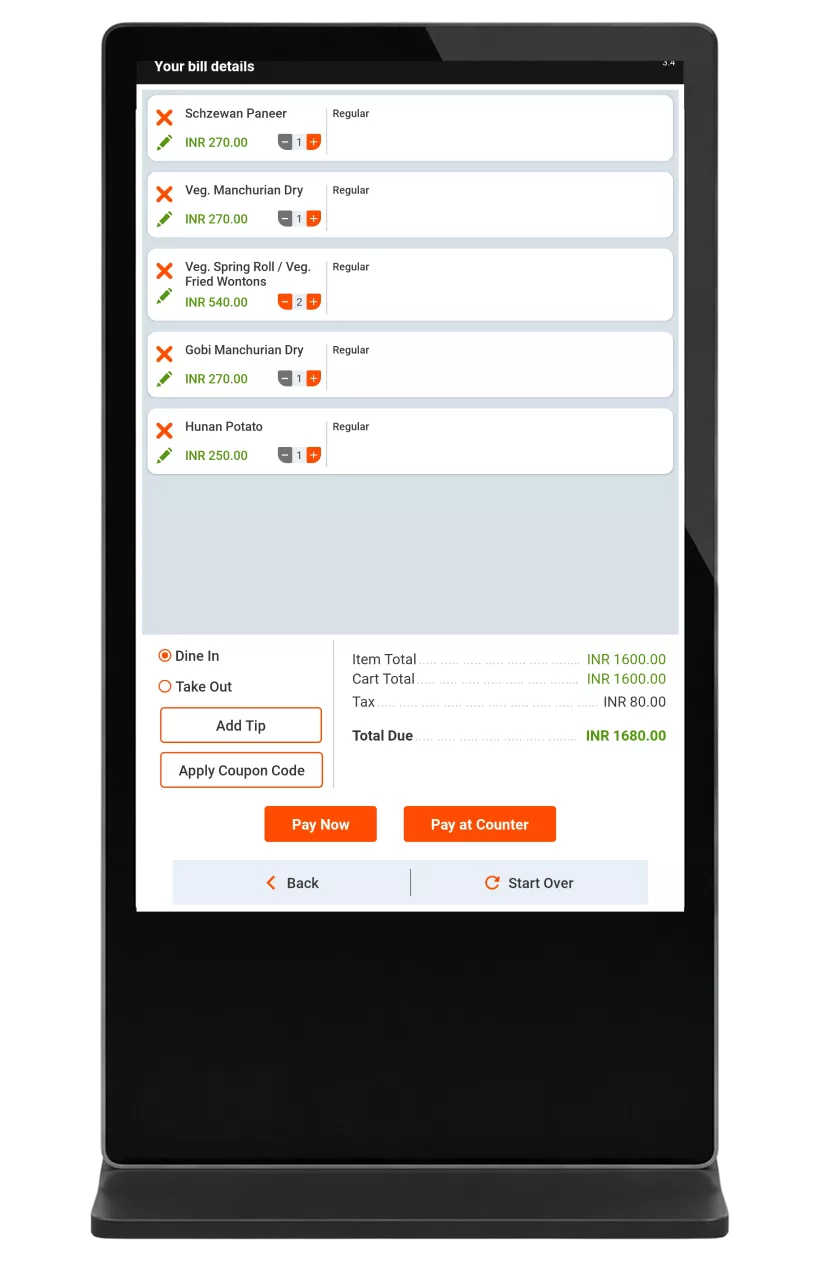
Review all selected items, modifiers, and quantities before checkout. Easily edit or remove items to avoid order errors.

Pay via student card or standard credit/debit card based on user type. A flexible tipping option is also available at checkout.

A guided, linear flow takes users from Menu to Modifiers to Cart to Payment. This minimizes confusion and speeds up the ordering process.
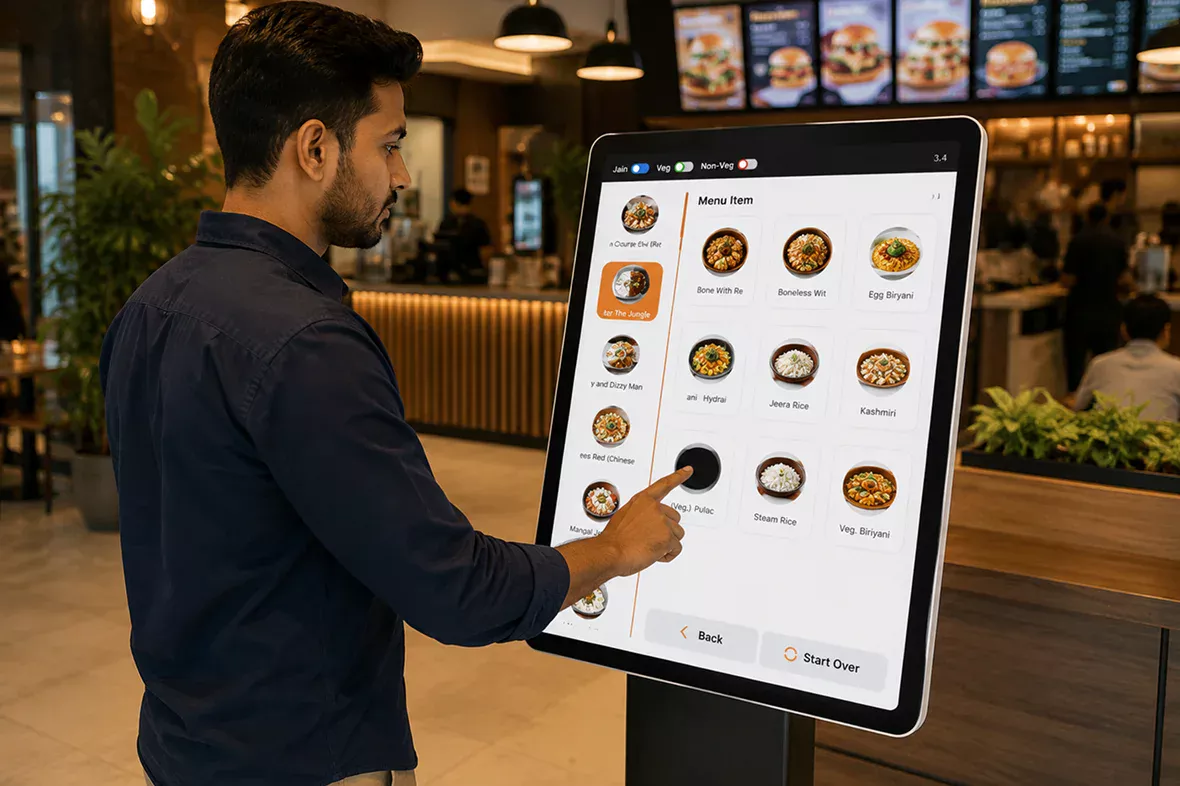
Orders and receipts print even when the internet drops, kitchen devices stay in sync over the local network, and NFC/RFID tap-ins plus Item Ready QR codes keep pickup fast without adding extra steps for staff.
Five core capabilities that make Kiosk the only tool your front-of-house needs.

Restaurant signs up and creates an account on the Truffle platform. Basic outlet details and contact information are configured.

Categories, sub-categories, and items are uploaded with pricing and images. Modifiers and customization options are mapped to relevant menu items.

The kiosk device is installed and connected at the outlet location. Network and power setup is verified for smooth operation.

Credit/debit card and student card payment options are configured. Tipping settings are enabled as per outlet preference.

The kiosk is activated for live customer use at the outlet. Ongoing support is provided for updates and troubleshooting.
From cozy cafes to bustling fine-dine Restaurants, we support all outlet types for seamless operations and growth!





After a successful payment, the connected printer automatically prints the receipt. If a printer is configured and has paper loaded, the receipt will print immediately after the order is placed. If no printer is connected or the printer is offline, a physical receipt will not be available. For a digital receipt, please ask the counter staff.
A duplicate order is showing at the counter. Why did this happen?
Counter staff can manage orders from the POS system, which may include the ability to cancel or reject orders. However, since Pay at Counter orders require the customer to complete payment in person, the counter staff would usually communicate directly with the customer about any issue rather than silently rejecting the order.
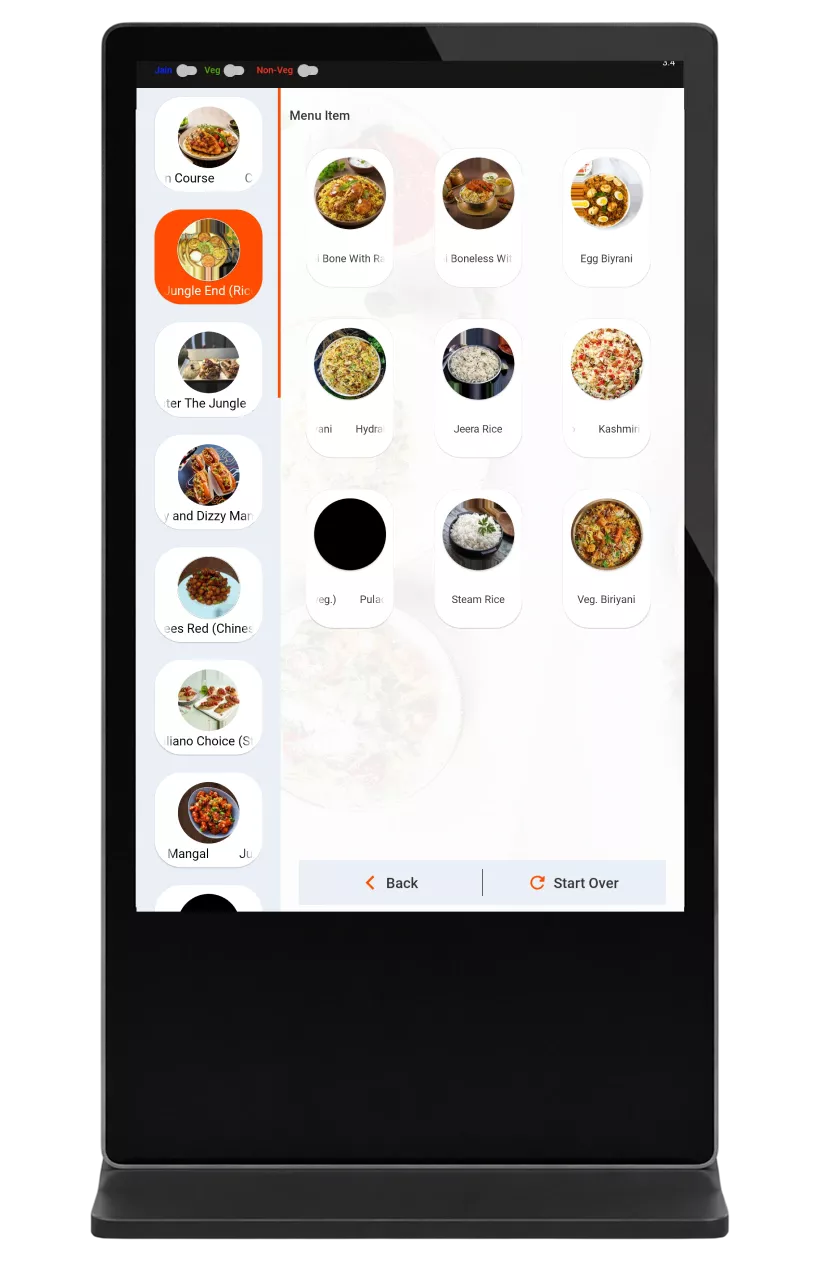
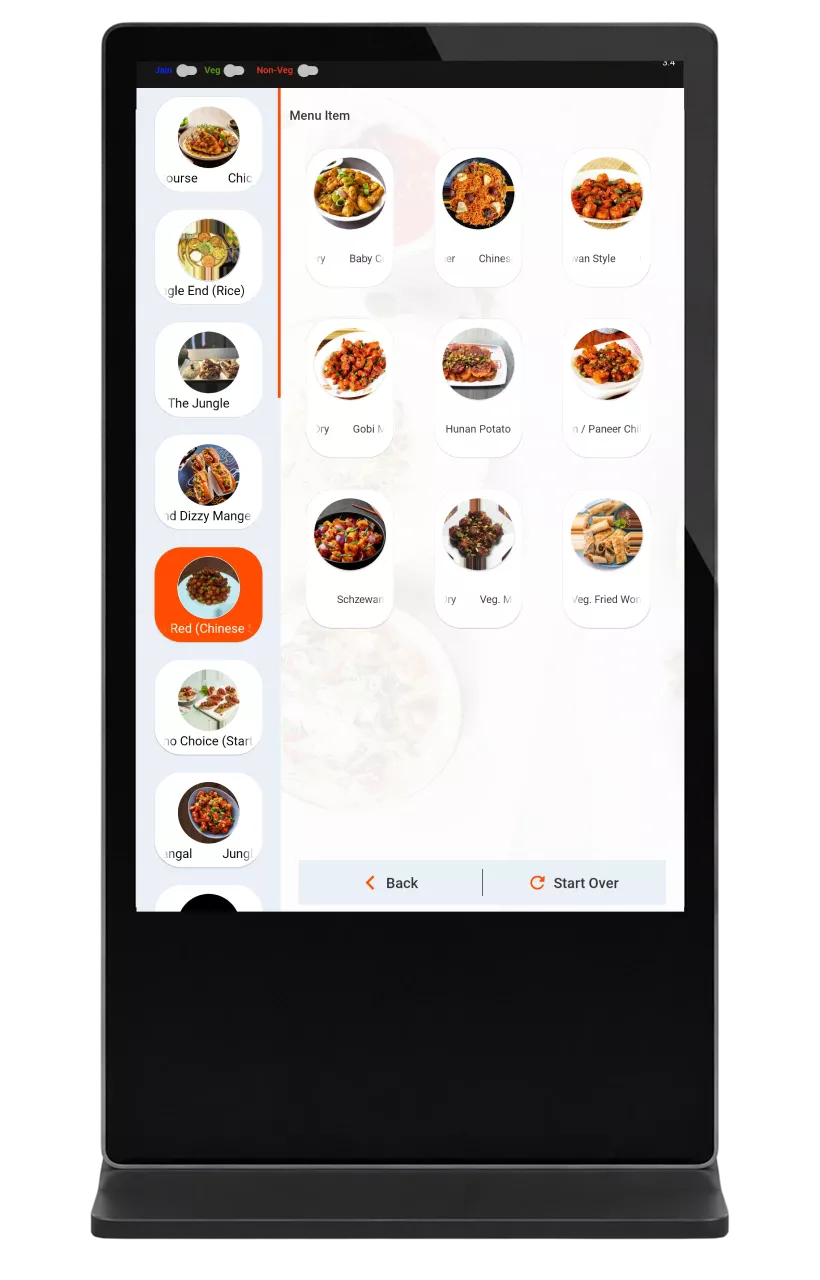
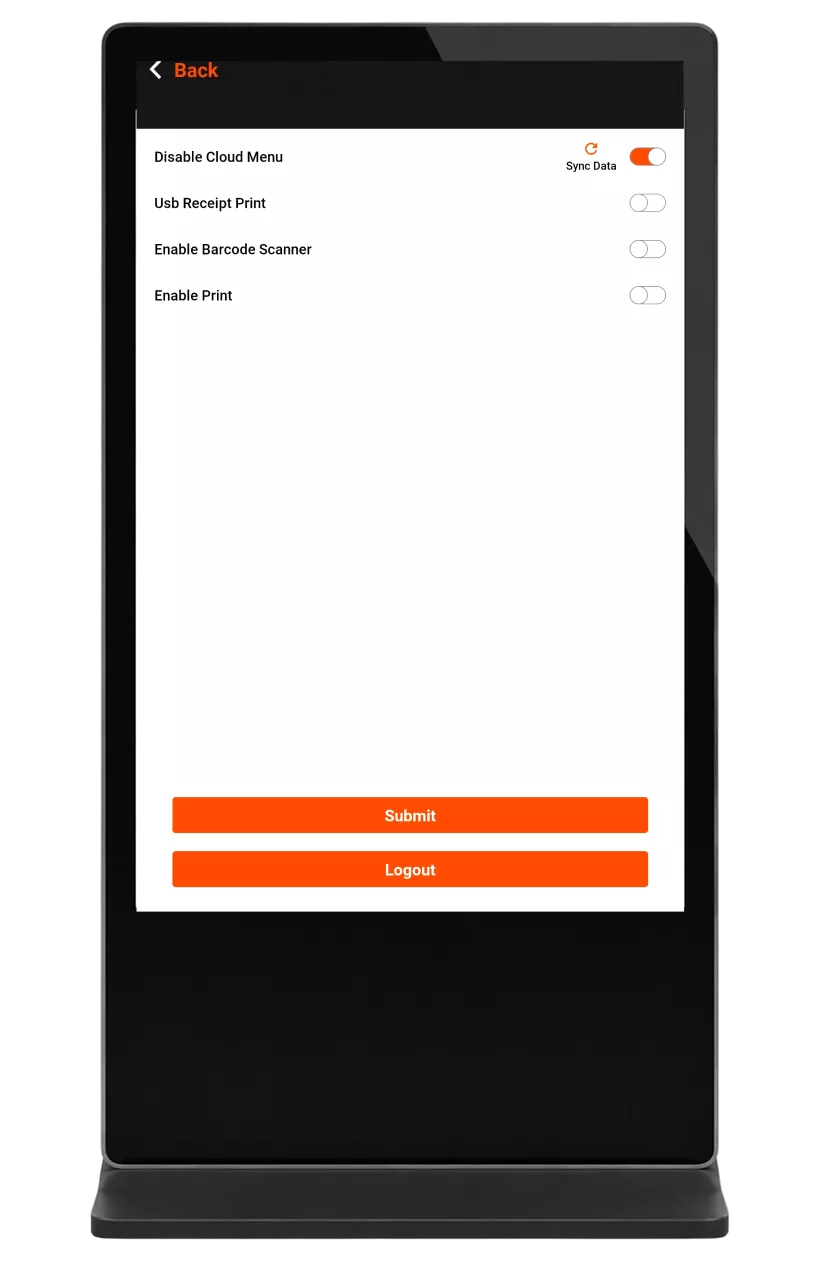
If a menu item is not appearing on the kiosk: Check whether the item is active in the backend portal (bo.trufflesystems.in). 2.Verify the Veg / Non-Veg / Jain filter, as selecting the wrong filter may hide items. 3.Refresh or reopen the kiosk app. 4.Perform an offline sync from the Settings menu. 5.If the item still does not appear, contact Truffle Support.
To add Extra Cheese or any other topping: 1. Tap the menu item you want to customize. 2.On the item details screen, scroll to the Modifiers / Add-ons section. 3.Select Extra Cheese if it is available for that item. 4.The price will update automatically. 5.Tap Add to add the customized item to the cart.
If a menu item is not visible on the kiosk: 1.Check the Veg / Non-Veg / Jain filter at the top, as the wrong filter may hide items. 2.Browse all categories in the left sidebar. 3.Check whether the item is out of stock (it may appear greyed out). 4.Confirm that the item is enabled for kiosk ordering in the backend. 5.Restart the kiosk app. 6.If the item still does not appear, contact support@trufflesystems.in and provide the item name.
Experience the future of transactions! Schedule a demo today and witness how our POS solution can revolutionize your business.