
Cross-Platform Support
The application is fully compatible with both iOS and Android devices. Drivers get a consistent experience regardless of their phone type.
Secure login, order management, and real-time tracking give drivers everything they need to manage deliveries from one simple, focused screen.
Book A Demo
Secure login, order details, live status tracking, and delivery history all sit in one consistent app, whether a driver is on iOS or Android.
The application is fully compatible with both iOS and Android devices. Drivers get a consistent experience regardless of their phone type.

Drivers log in using their registered credentials to access the app. This ensures only verified delivery personnel can manage orders.

Drivers can view complete customer order information after login. This includes items ordered, delivery address, and expected delivery time.

A direct call button lets drivers contact customers instantly. This removes the need to manually dial or save customer numbers.

Drivers can track their current order's live status from pickup to delivery. This keeps them updated on each stage of the delivery process.

A complete record of past deliveries is available within the app. This helps drivers reference previous orders when needed.

Drivers can view a transparent breakdown of their earnings. This builds trust and reduces payout-related confusion.

Drivers receive instant alerts for new orders and important updates. This ensures they never miss a delivery assignment.

Active orders, order history, and earnings sit in a single dashboard, so drivers always know what's happening now and what's already been delivered.
Seven core capabilities that make Drive Application the only tool your front-of-house needs.

Driver downloads the Truffle Driver app from the iOS App Store or Google Play Store. The app installs and opens to a welcome/login screen.

New drivers sign up by entering personal details, contact information, and required documents. This information is submitted for verification.

Drivers complete their profile with vehicle details and contact preferences. This ensures accurate information is available for order coordination.

Once online, drivers start receiving order assignments with full order details. Each order includes customer info, address, and delivery time.

Drivers use in-app navigation to reach the restaurant and delivery location. Order status is updated at each stage of the delivery process.

Drivers confirm delivery completion through the app, such as OTP or proof of delivery. This marks the order as successfully completed.

Drivers can view their order history, earnings, and notifications anytime. This keeps them informed about performance and payouts.
From cozy cafes to bustling fine-dine Restaurants, we support all outlet types for seamless operations and growth!






Verify the customer’s address in the order details. If the location is incorrect or unclear, contact the customer or the restaurant for clarification before proceeding with the delivery.
Open the assigned order and tap the Cancel Order button available on the Order Details screen.
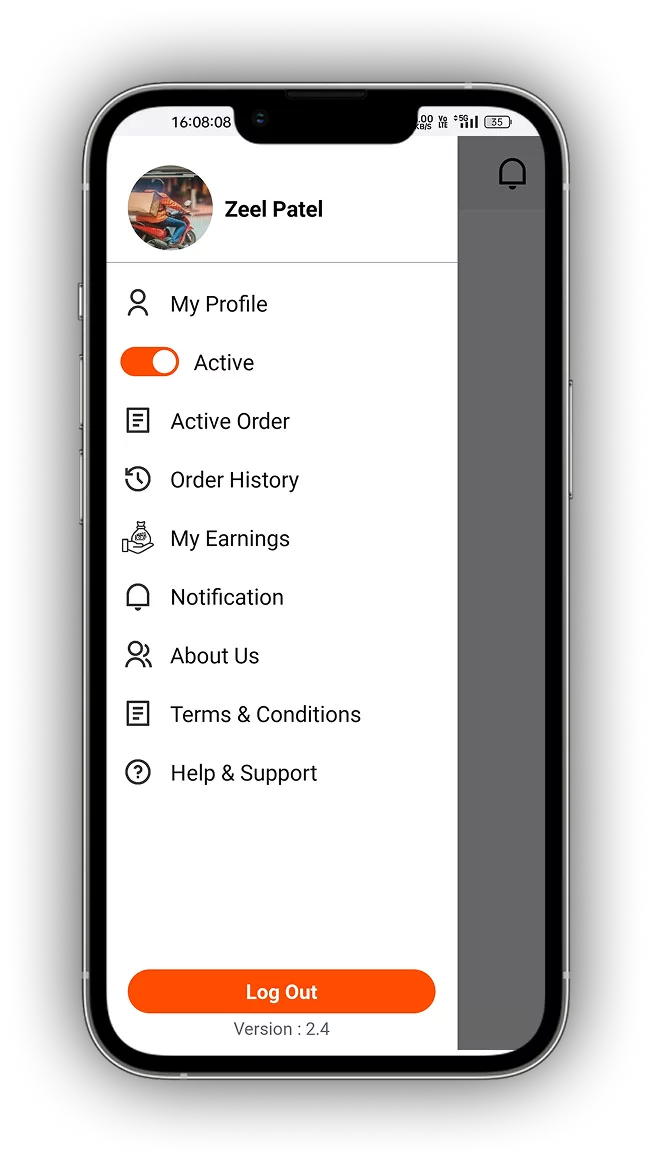
Open the sidebar menu and tap the Logout option to sign out of the Truffle Driver App.
The Call Restaurant button is available on the Order Details screen before and during the delivery process.
No. Drivers can only view orders that are assigned to their own account.
Active Orders displays all orders currently assigned to you. Tap on an order to open the Order Details page, where you can view the complete delivery information.
Experience the future of transactions! Schedule a demo today and witness how our POS solution can revolutionize your business.